Delivery X FAQ
Quick fixes for the most common problems on the road. Find your problem, then follow the steps in order.
Questions
My camera is not working
The camera shows a black screen, does not open, or never asks to take a photo. Most of the time, this means your phone is not letting Delivery X use the camera. Work through these steps in order and stop when the camera works.
1. Give Delivery X access to your camera
When your phone asks to use the camera, tap Allow. If you tapped Don't Allow before, your phone remembers it. Turn it back on:
iPhone
- Open Settings. On newer iPhones, tap Apps next.
- Tap the browser you use for Delivery X. For example, Safari or Edge.
- Tap Camera. Choose Allow, or turn it on.
- Go back to Delivery X. Try the camera again.
Android
- Open Settings, then Apps.
- Tap the browser you use for Delivery X. For example, Edge or Chrome.
- Tap Permissions, then Camera. Choose Allow only while using the app.
- Go back to Delivery X. Tap the icon to the left of the web address and make sure Camera is allowed. Try the camera again.
2. Close other apps that use the camera
Only one app can use the camera at a time. Close the Camera app, video calls, and any scanner apps, then try again.
3. Reload Delivery X
Reload the page so it asks for the camera again.
Do not:
- reload with no signal
- reload while the green bar is showing
With no signal, the app will not run after a reload. Wait until you have Wi-Fi or cellular and the green bar is gone.
4. Restart your phone
Wait until Packages in Queue shows 0, then turn your phone off and on again. Open Delivery X and try the camera.
Still not working?
Contact your supervisor. Tell them your phone model and what you see when you open the camera.
The map is blank or says "Error getting location"
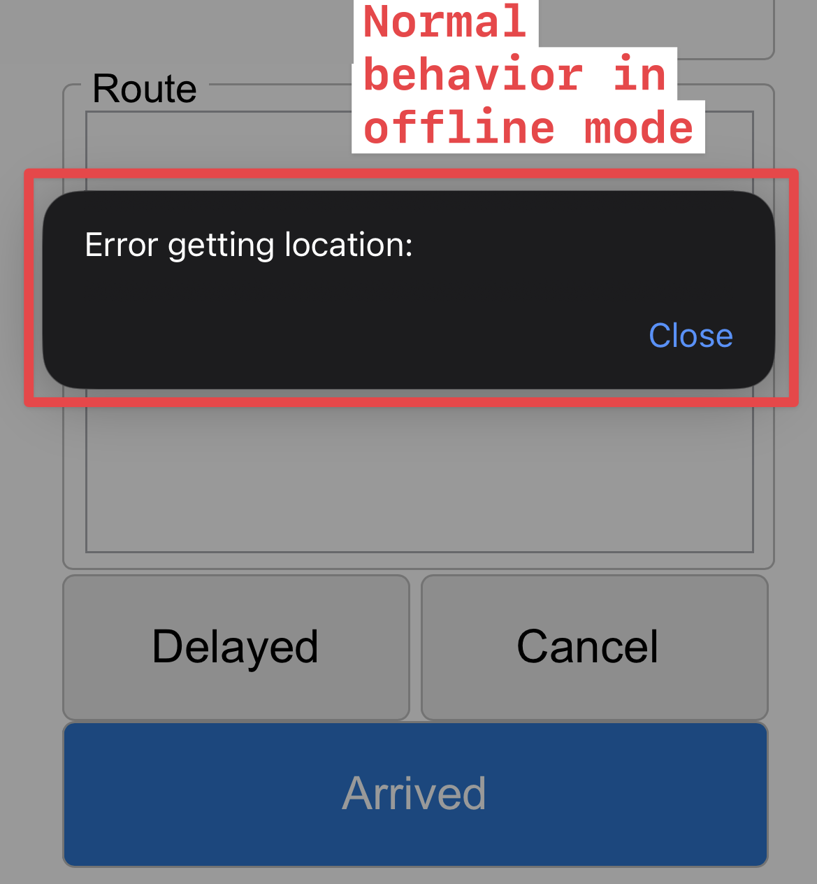
This is normal when you have no signal. Maps come from the internet, so with no Wi-Fi or cellular the map area stays blank. You may also see a small "Error getting location" message. It does not mean anything is wrong with the app or your delivery.
What to do
- Tap Close on the message.
- Keep delivering. You can open stops, capture signatures, take photos, and complete deliveries as usual.
GPS still works
Your phone's GPS does not need a signal. The longitude and latitude are still recorded and still show at the end of your delivery.
Do not refresh the app while you have no signal. If you refresh with no signal, the app will not run. Wait until you have a signal again.
My deliveries are not sending
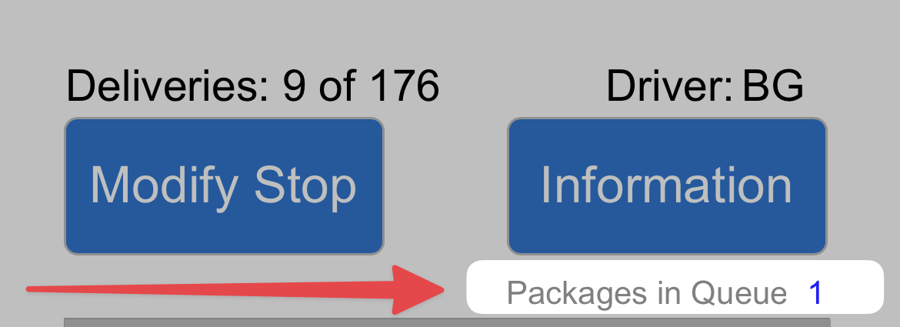
Completed deliveries wait on your phone until they can be sent. Packages in Queue, at the top right above your delivery list, shows how many are still waiting.
What to do
- Get a signal. Wi-Fi or cellular both work. If you have no cellular service, connect to Wi-Fi.
- Wait up to 30 seconds. The queue starts sending on its own. You do not need to tap anything.
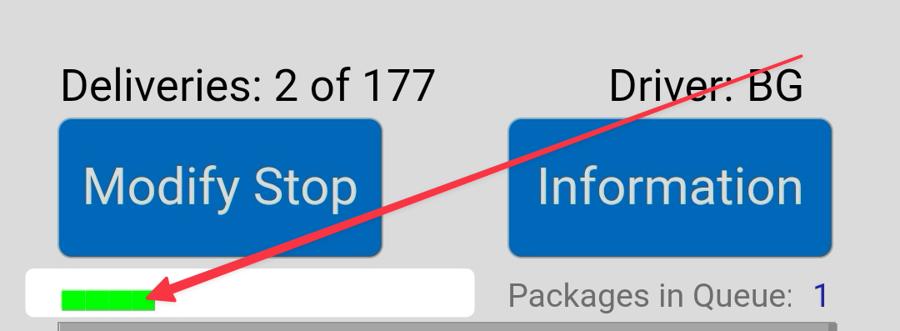
- Watch the number go down. One package is sent every second. While a package is sending, a green bar grows at the top left of the screen.
Do not:
- turn off your phone
- close the tab
- close the app
Leave the app open until the green bar is gone.
All done when the queue shows 0. When the number reaches zero and the green bar is gone, all of your deliveries have been sent.
Still not sending?
Contact your supervisor. Tell them the number shown next to Packages in Queue.